

Canceling a subscription on your iPhone takes less than a minute once you know where Apple hides the setting. Most subscriptions, whether it’s Apple Music, a streaming app, or a game with in-app purchases, are all managed from the same screen. You don’t need to hunt through individual apps one by one. This guide covers the exact steps, plus what to do when a subscription refuses to show up. It also covers Family Sharing subscriptions and subscriptions billed outside the App Store entirely
How to Cancel a Subscription on iPhone Using Settings
This is the fastest and most reliable way to cancel a subscription on iPhone. It works for anything billed through your Apple ID.
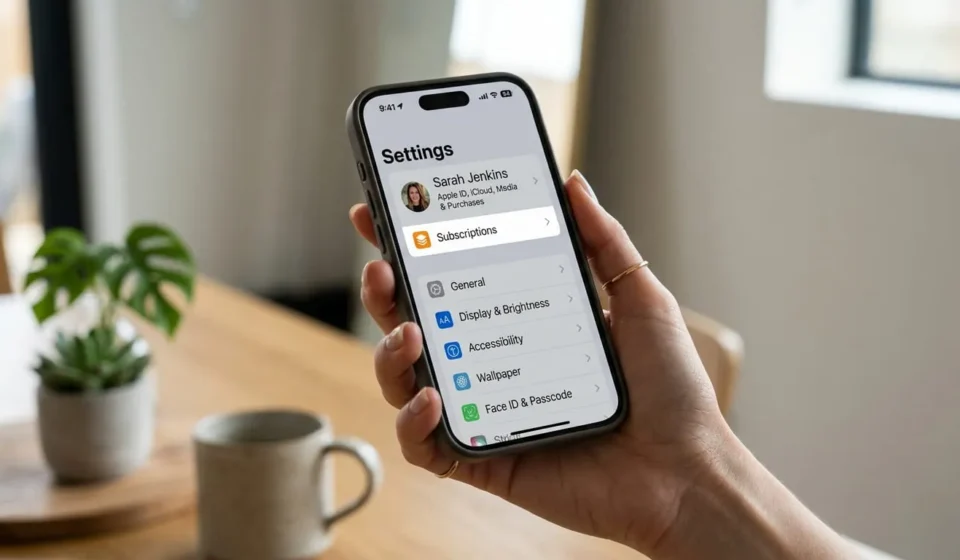
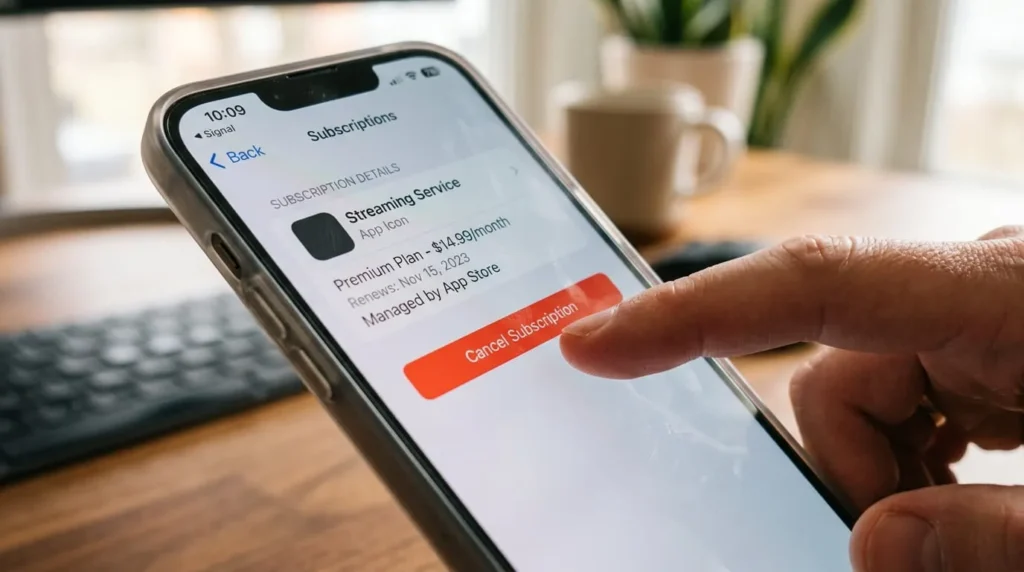
Open the Settings app on your iPhone. Tap your name at the top of the screen. This opens your Apple Account page. Tap Subscriptions. iOS lists every subscription tied to your Apple ID, both active and expired. Tap the subscription you want to cancel. Scroll down and tap Cancel Subscription, then confirm.
If you don’t see a Cancel Subscription button, the subscription is already canceled. Instead of a renewal date, you’ll see an expiration date showing when access ends.
Keep in mind this screen only shows subscriptions billed through Apple. If you signed up for a service using a credit card directly on a company’s website, it won’t appear here at all. That’s true even if you use their app on your iPhone every day.
How to Cancel a Subscription Using the App Store App
If you keep the App Store open more than Settings, this route gets you to the same place.
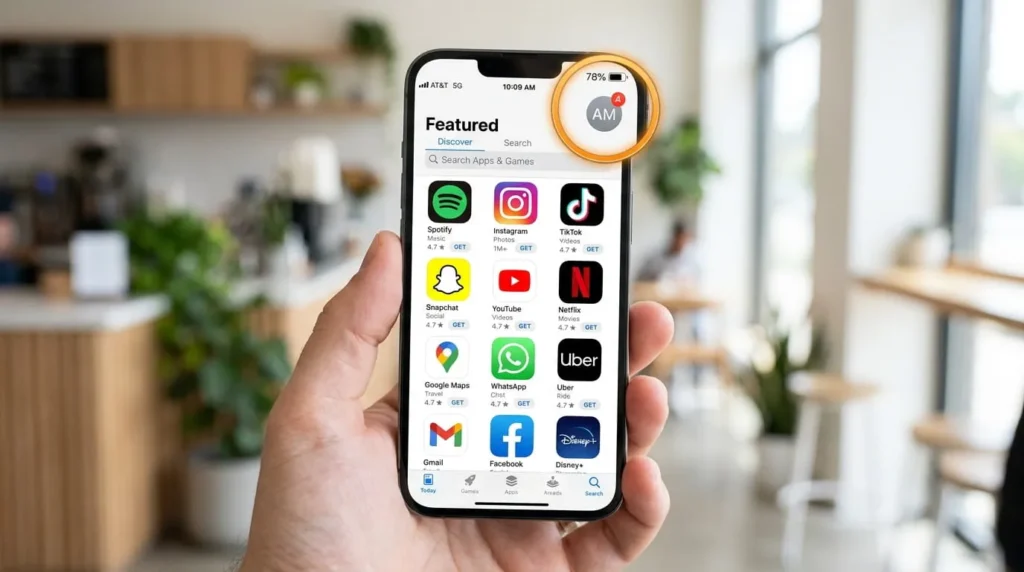
Open the App Store app. Tap your profile icon in the top right corner. Tap your name near the top, then tap Subscriptions. Select the subscription and tap Cancel Subscription.
Both methods pull from the same Apple ID subscription list, so it doesn’t matter which one you use. Pick whichever app you happen to have open.
When to Cancel So You Aren’t Charged for Another Cycle
Apple usually attempts the renewal charge a little before the actual renewal date, not at the exact moment it hits. Canceling on the renewal day itself can sometimes be too late if the charge has already started processing. A safer rule is to cancel at least 24 hours before the renewal date. That date is listed right next to each subscription on the Subscriptions screen, so you can plan around it easily.
What Actually Happens After You Cancel
Canceling stops the subscription from renewing, but it doesn’t cut off access immediately in most cases. You already paid for the current billing period, so the service typically stays active until that period ends. You won’t be charged again once it does.
Free trials work a little differently, and this is where the advice above doesn’t always apply. Canceling during a trial stops the trial right away for some apps. Others let you keep using the service until the trial’s original end date instead. Check the confirmation screen that appears after you tap Cancel. It tells you exactly when access ends for that specific subscription.
If you change your mind, you can resubscribe anytime before the current period fully expires. Just open the same Subscriptions screen and tap Resubscribe
How to Confirm the Cancellation Actually Worked
After canceling, reopen Settings, tap your name, then tap Subscriptions. A subscription that’s genuinely canceled shows a red expiration date instead of a green renewal date. You should also get a confirmation email from Apple shortly after, though it isn’t instant for every subscription. If you don’t see either sign within a day, repeat the cancellation steps to make sure the change actually saved.
What to Do If You Can’t Find the Subscription You Want to Cancel
Two things usually explain a missing subscription, and neither means Apple lost your data.
The subscription is billed outside Apple
Plenty of apps let you sign up with a card or PayPal directly on their own website. That happens even though the app itself lives on your iPhone. Apple never processes that payment, so it will never show up in your Subscriptions list no matter how many times you check. Log into that company’s website or app directly, find your account or billing settings, and cancel from there. If you can’t locate a cancel option, contact their support team and ask them to cancel and confirm in writing
Screen Time restrictions are hiding it
Content and Privacy Restrictions might be turned on, either by you or by a parent on a managed device. When that happens, App Store purchases and subscriptions can be partially hidden or locked. Go to Settings, then Screen Time, then Content and Privacy Restrictions, and check whether App Store Purchases are restricted.
If a charge shows up on your bank statement but you can’t find the source, sign into reportaproblem.apple.com. It lists your full Apple purchase and subscription history, which sometimes surfaces a subscription that isn’t showing correctly on your phone.
Canceling a Subscription Shared Through Family Sharing
Subscriptions shared through Family Sharing behave a little differently than ones you bought yourself. Only the family member who originally purchased it can cancel it, even though everyone in the group can see and use it.
If a subscription shows on your iPhone but you can’t cancel it, you’re probably not the original purchaser. Ask whichever family member bought it to cancel it from their own device using the same Settings steps above. Canceling it removes access for every family member sharing it, not just the person who bought it. It’s worth a quick heads up before you pull the plug on something the whole household uses.
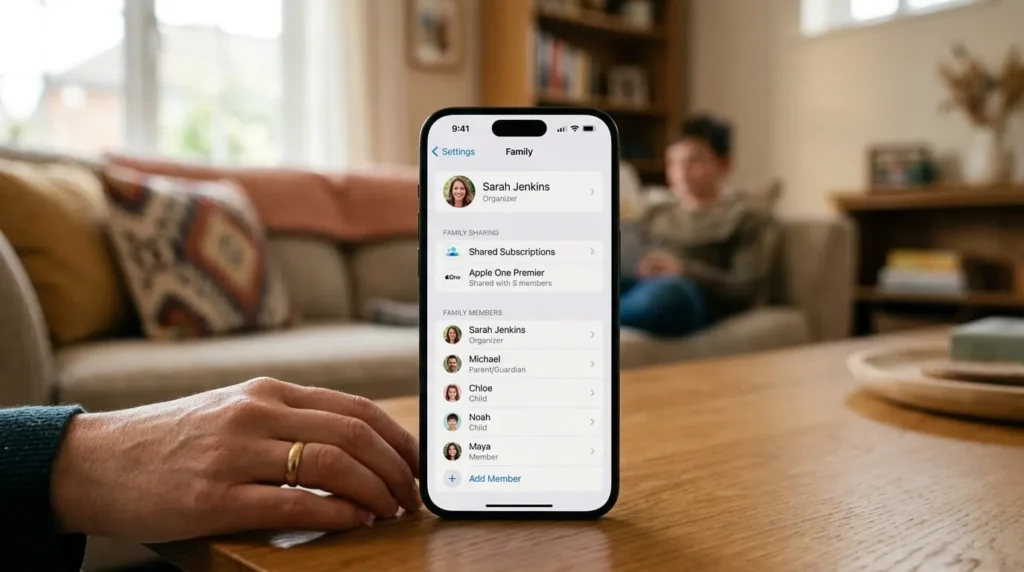
The Family Sharing organizer has one other option worth knowing about. They can remove a specific app or service from shared purchases entirely. This stops it from appearing on everyone else’s devices, without canceling the subscription for their own use. This is useful when only one family member still wants the service but everyone else has stopped using it.
Common Mistakes That Don’t Actually Cancel a Subscription
Deleting the app from your iPhone feels like it should cancel the subscription attached to it, but it doesn’t. Apple keeps billing you as long as the subscription is marked active in your account, whether or not the app is installed.
Signing out of your Apple ID, turning off notifications for an app, or restricting it through Screen Time won’t cancel anything either. None of these touch the actual subscription record tied to your Apple Account. The only way to stop the charge is to cancel through the Subscriptions screen itself.
Emailing the app’s developer to ask them to cancel it for you usually doesn’t work either. Once a subscription is billed through Apple, the developer has no direct control over the charge on their end. They can point you back to the Subscriptions screen, but they can’t force a cancellation from their side.
How to Cancel From a Mac, iPad, or the Web
The Settings steps above work identically on an iPad. On a Mac, open the App Store and click your name at the bottom of the sidebar. Click View Information, sign in if prompted, then scroll to the Subscriptions section. Click Manage, find the subscription, click Edit, and choose Cancel Subscription.
If none of your Apple devices are handy, you can cancel from a browser instead. Sign into your Apple Account subscriptions page at appleid.apple.com or through reportaproblem.apple.com, locate the subscription, and cancel it from there. This is the easiest backup option if your Subscriptions screen won’t load or your iPhone is being repaired.
Does Canceling Delete Your Data or Account
Canceling a subscription stops the billing. It doesn’t delete your account with that app’s developer or wipe your saved data. Your login, files, and settings inside the app usually stay intact. They’re only removed if you separately delete your account from within the app itself.
What you lose is access to the premium features once the paid period ends. If the app has a free version, it typically drops you back to that tier automatically. If the app only exists as a paid subscription with no free tier, it may stop working entirely until you resubscribe. It stays installed on your iPhone the whole time and doesn’t get removed.
Can You Get a Refund After Canceling
Canceling only stops future charges. It doesn’t automatically refund anything you’ve already paid, even if you cancel the same day you were billed.
To request a refund, sign into reportaproblem.apple.com, find the charge in your purchase history, and select Report a Problem next to it. Choose the reason that fits, such as an accidental purchase or a subscription you forgot to cancel, and submit the request. Apple reviews each request individually, so approval isn’t guaranteed, particularly if you used the service extensively after the charge went through.
If the subscription was billed by the company directly, rather than through Apple, request that refund from the company itself. Apple has no record of a charge it never processed, so its refund tool won’t be able to help with those cases.